How to Change Your Logo's Colors with AI

To change your logo's colors with AI, open the logo in the Logo Diffusion Magic Editor and type the change as one sentence, for example "change the orange to forest green, keep everything else the same." At the default Base quality an edit costs 5 credits, and the recolored logo comes back as an image. To lock the new colors to your exact brand hex codes, vectorize the result and set the codes in the SVG.
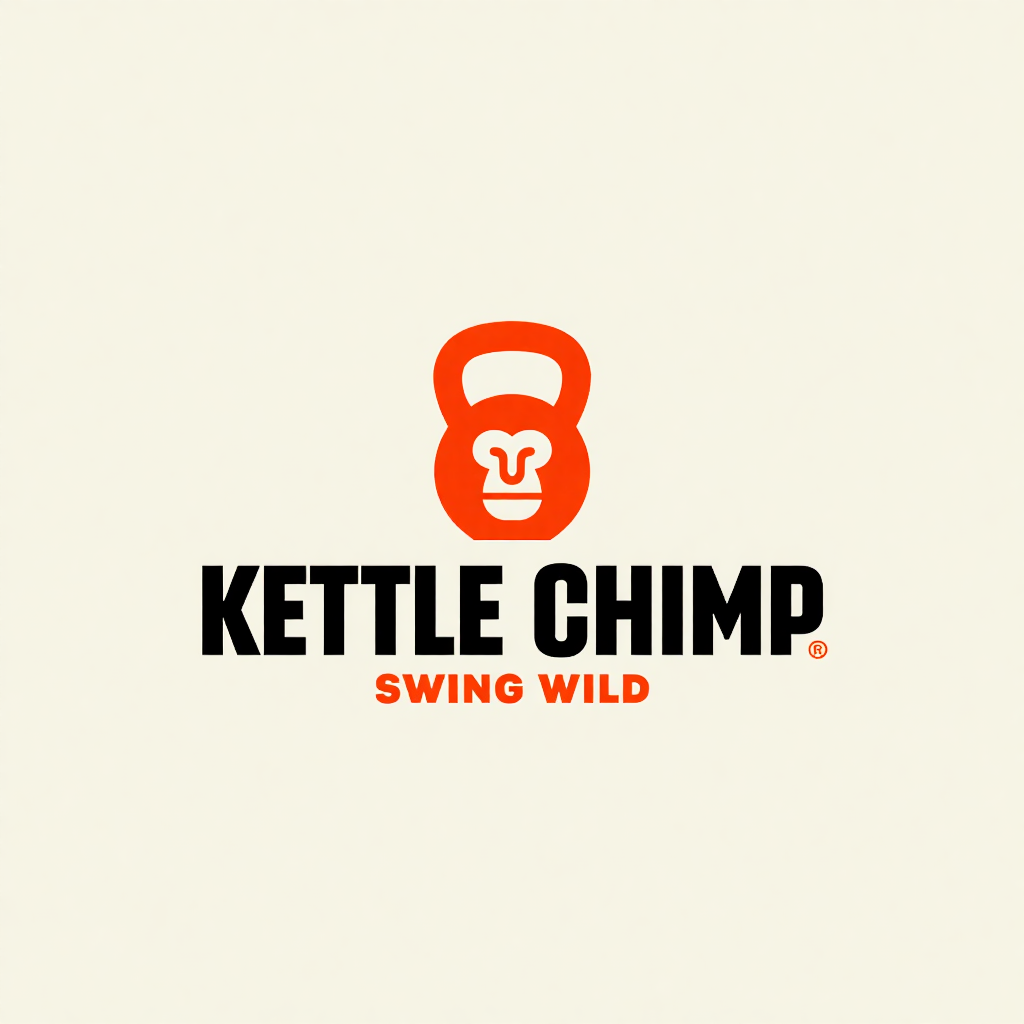
This guide follows one logo the whole way: Kettle Chimp, a logo from the Logo Diffusion gallery. We recolored it in the Magic Editor, tried a second palette, vectorized the version we kept and set its exact hex code. Every image below is that logo.
Geometric primate head fused into a kettlebell silhouette, using sharp, heavy vector lines and minimalist text.
Step 1: Open the Logo in the Magic Editor
The Magic Editor is the Logo Diffusion tool that edits a logo from a text instruction. Open a logo you made with the Edit result button under it, or upload a logo file on the Magic Editor page. We uploaded Kettle Chimp.
Start from the cleanest version you have: a flat logo on a plain background, like this one. A photo of a sign or a mockup adds shadows, texture and perspective that the edit has to deal with too.
Step 2: Write the Color Change as One Sentence
Type the instruction in the prompt box. Name the new color in plain words and say what must stay the same. This is the first instruction we gave Kettle Chimp:
change the orange to forest green, keep everything else the same
Three habits make the result easier to use:
- Name each color. "Forest green" is easier to act on than "a calmer palette". Common names are enough, and you can name a shade.
- Point at the part. Name the color or the area you want changed, so the rest of the logo has no reason to move.
- Say what stays. "Keep everything else the same" tells the editor that the shapes, the text and the layout stay as they are.
Make one change per instruction. If you also want thicker lines or a new font, run that as a separate edit.

Make your logo with Logo Diffusion's AI logo generator. Describe it, sketch it or upload an image, then turn it into a layered SVG with Vectorize. Try it for free.
Step 3: Generate and Check the Result
The Magic Editor has four quality levels:
- Fast: 3 credits.
- Base: 5 credits. This is the default.
- Pro: 9, 16 or 24 credits for a 1K, 2K or 3K image.
- Ultra: 14, 24 or 40 credits for a 1K, 2K or 3K image.
For a color change, start at Base. Click Generate and the edited logo comes back as an image. Look at every part of it, not only the biggest shape. Our first edit turned the kettlebell forest green and kept the black lettering, and the small tagline under the name stayed orange. A second instruction on that result named the parts that were left:
make the tagline SWING WILD and the small R symbol forest green, keep everything else the same

Check the result at full size and at icon size before you move on. A second edit on the result is the quickest fix for a part that kept its old color.
Step 4: Try More Than One Palette
Run each palette as its own edit on the original logo, so every version starts from the same shapes and you compare colors, not drift. This time we named every part at once:
change every orange part to royal blue and the black to navy, keep everything else the same

Put the versions side by side at the size the logo is used most, then pick one. We kept the forest green.
Step 5: Vectorize the Version You Pick
The Magic Editor returns an image, and the colors in an image are approximate. To use exact codes, turn the result into a vector file. Open it in Vectorize: the Default vectorizer costs 5 credits, and the HQ vectorizer costs 8 credits on paid plans and gives you a Stacked file and a Cut out file. Downloading both costs nothing extra.
We used HQ. The Stacked SVG came back with 32 paths in 3 fill codes: cream #fafbe8, black #000000 and green #035918. That green is the vectorizer's reading of the edited image: close to forest green, but not a code anyone chose. The Cut out file came back with the same three codes.
Step 6: Set Your Exact Brand Hex Codes
In an SVG, every flat color is one fill code, so changing a color means changing one code. Open the file in a vector editor such as Illustrator, Figma, Affinity Designer or Inkscape, select the shape and type your hex code. Or open the SVG in a text editor and replace the code everywhere it appears.
Kettle Chimp's green is one code in the file. We replaced #035918 with a brand green, #2d6a4f, in a text editor, and every green shape changed at once: the kettlebell, the tagline and the small R symbol. Nothing else moved.
For a transparent logo, use the Cut out file. Every hole in it is cut all the way through, so the cream in it is only the old background: around the logo, inside the handle, in the P and on the chimp's face. Delete every cream shape (#fafbe8) and the logo sits on whatever is behind it. In the Stacked file the holes are covered instead of cut out, so start from Cut out for this.

Save the SVG, then export the PNG sizes you need from it, so every file carries the same codes. Our guide on exporting logos as SVG files covers the file itself in more detail.
New Colors, or a New Look?
The Magic Editor changes colors and keeps the logo. Style Transfer does a different job: it takes your logo and a style image, such as a croissant or a balloon from its style gallery, and re-renders the logo in that look, so the colors change with the material. It has no color controls. For brand colors, use the Magic Editor and the SVG.
Frequently asked questions
Can AI change the colors of my logo?
Yes. In Logo Diffusion, open the logo in the Magic Editor and type the change, for example "change the orange to forest green, keep everything else the same." The recolored logo comes back as an image. Base quality, the default, costs 5 credits.
Yes. In Logo Diffusion, open the logo in the Magic Editor and type the change, for example "change the orange to forest green, keep everything else the same." The recolored logo comes back as an image. Base quality, the default, costs 5 credits.
Can I change just one color and keep the rest?
Yes. Name the color or the part you want changed and say that everything else stays. If a small part keeps its old color, name it in a second edit on the result, or say "every orange part" from the start.
Yes. Name the color or the part you want changed and say that everything else stays. If a small part keeps its old color, name it in a second edit on the result, or say "every orange part" from the start.
Will the AI match my exact brand hex codes?
Not exactly. The Magic Editor returns an image, and the colors in an image are approximate. Vectorize the result, then set your exact hex codes in the SVG, in a vector editor or a text editor.
Not exactly. The Magic Editor returns an image, and the colors in an image are approximate. Vectorize the result, then set your exact hex codes in the SVG, in a vector editor or a text editor.
How much does it cost to recolor a logo?
A Magic Editor edit costs 5 credits at Base, the default, or 3 at Fast. Turning the result into an SVG costs 5 credits with the Default vectorizer, or 8 with the HQ vectorizer on paid plans. The forest green Kettle Chimp took two edits and one HQ vectorization: 18 credits.
A Magic Editor edit costs 5 credits at Base, the default, or 3 at Fast. Turning the result into an SVG costs 5 credits with the Default vectorizer, or 8 with the HQ vectorizer on paid plans. The forest green Kettle Chimp took two edits and one HQ vectorization: 18 credits.
Does Style Transfer change logo colors?
Style Transfer re-renders your logo in the look of a style image, such as a croissant or a balloon, so the colors change along with the material. It has no color controls. To move a logo to a set palette, use the Magic Editor.
Style Transfer re-renders your logo in the look of a style image, such as a croissant or a balloon, so the colors change along with the material. It has no color controls. To move a logo to a set palette, use the Magic Editor.


Start with the material prompt.
The honest test is a real project, not a demo. 24 credits, no card.