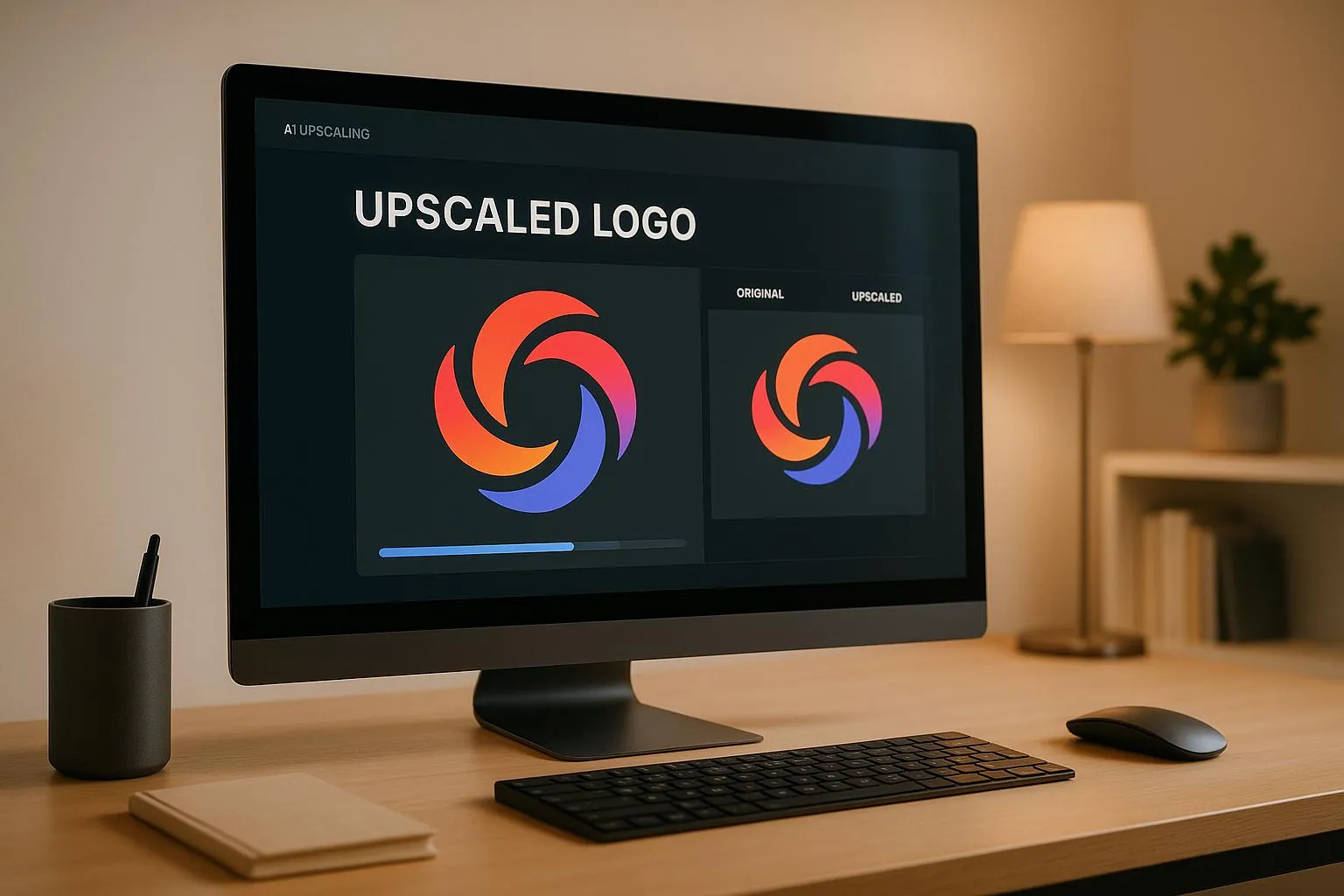

TABLE OF CONTENT

Logo Upscaling Workflow: Step-by-Step Guide

May 15, 2025
logo-design
Ethan Brookes
SEO Content Writer

Want your logo to look sharp everywhere? High-resolution logos are essential for a professional brand image. AI-powered upscaling tools like Logo Diffusion make it easy to enhance your logo's clarity and resolution. Here's a quick overview of what you'll learn in this guide:

Quick Tip: Start with vector files (like SVG) for the best results, and always maintain a resolution of at least 300 DPI for print materials.

This guide will walk you through the entire process, from preparing your files to exporting them in the right format, ensuring your logo looks flawless everywhere.

File Preparation Steps

Getting your files ready is a key step before using AI-powered upscaling tools. The quality of your results depends heavily on how well your input files are prepared. Here’s how to set up your files for the best possible outcome.

Best File Formats

Vector files are the gold standard for upscaling. Formats like SVG (Scalable Vector Graphics) are particularly effective because they maintain sharp edges and clarity, no matter how much you scale them. As Bianca Palmer explains:


"Understanding the strengths of each logo file format ensures your logo always looks professional, no matter where it's displayed."

For raster logos, different formats serve specific purposes:

Format Best For Main Benefit
SVG Web and print Infinite scalability
PNG Digital media High-quality raster output with transparency
EPS Professional printing High-quality editing capabilities


Minimum Resolution Requirements

Starting with a high enough resolution is critical for effective upscaling. Logo Diffusion's AI models work best when images meet certain baseline standards. Here are the recommended minimum dimensions:

Platform Minimum Dimensions
Web 250 × 150 pixels
Social Media 400 × 400 pixels
Print / High-resolution 1000 × 1000 pixels


For print projects, ensure your source file is at least 300 DPI. Higher resolutions improve results for both print and digital use.
Logo Diffusion Pre-Processing

Logo Diffusion

Logo Diffusion includes an automatic pre-processing step to prepare logos for upscaling. This process removes backgrounds, isolates key elements, and ensures clean, sharp edges - especially helpful for logos with intricate designs or transparency needs.

Before uploading your logo to Logo Diffusion, double-check these requirements:

Logo Diffusion AI Model Settings

Logo Diffusion's AI models are designed to turn logos into sharp, high-resolution assets that stand out.

Model Selection Guide

Logo Diffusion V.5 introduces a dual-model system, tailored to handle different logo styles and needs:

Model Type Best For Processing Speed Key Features
Simple Model Minimalist logos and text-heavy designs Faster processing Clearer text, smooth edges
Detailed Model Detailed illustrations and intricate logos Standard processing Preserves fine details, follows prompts closely


Both models pair seamlessly with the Creative Upscaler, which enhances details and fixes artifacts for a polished final result.

Upscaling Settings

Logo Diffusion offers flexible upscaling options, which depend on your subscription plan:

Plan Upscaling Capability Monthly Allowance
Basic 2X Creative Upscaler 100 × 2X upscales
Pro 4X Creative Upscaler 250 × 2X or 85 × 4X upscales
Elite 4X Creative Upscaler 1,000 × 2X or 300 × 4X upscales


To avoid distortion, stick to the original aspect ratio. While the platform suggests the best settings automatically, you can tweak them to fit your specific needs.


"The Creative Upscaler enhances details while upscaling images up to 4x, ensuring high-resolution downloads with beautiful details", says Ali Rahmoun, founder of Logo Diffusion.

Multiple Logo Processing

Streamline your workflow with batch processing. Logo Diffusion supports processing multiple logo versions at once, with the number of simultaneous jobs depending on your plan:

    Consistency is key - apply the same settings across batches to maintain uniform quality. The platform’s queue system ensures every file is processed without compromising quality.

    For projects requiring various logo sizes and formats, use the vector export feature. This ensures scalability for all processed versions, making it an essential tool for creating cohesive brand packages.

    Quality Checks and Adjustments

    After upscaling, it's essential to review the results to ensure they meet professional standards.

    Common Issues and Fixes

    When inspecting upscaled logos, keep an eye out for these common problems and their fixes:

    Issue Symptoms Recommended Fix
    Pixelation Blocky edges, jagged lines Reprocess with refined upscaling settings to improve detail clarity
    Color Banding Noticeable steps in gradients Enable smooth gradient processing to achieve seamless transitions
    Edge Artifacts Halos around text or shapes Adjust sharpness settings and reduce enhancement strength
    Distortion Stretched or warped elements Ensure the original aspect ratio is maintained and reprocess with correct dimensions

    Always view the logos at both 100% and 300% zoom levels. For example, in Adobe Acrobat, a print-ready logo should maintain sharp, clean edges without any visible degradation, even at 300% magnification.

    Once adjustments are made, confirm that the results align with your brand's visual standards.

    Brand Standards Check

    To ensure the logo meets brand requirements, follow a systematic verification process:

    By following these steps, you can ensure that the logo retains its professional appearance across all formats.

    Version Comparison

    Perform a side-by-side comparison of the original and the upscaled versions to confirm that the quality has improved and meets your brand criteria:

    Validation Area Verification Method Acceptance Criteria
    Resolution Check file properties Minimum 300 PPI for print
    Detail Quality Side-by-side comparison Must be equal to or better than the source
    Color Profile Use a profile inspector Must match the brand's ICC profile

    "Color consistency reinforces trust. Inconsistency with colors associated with a brand subconsciously diminishes it, and erodes brand loyalty." – Idealliance

    Export test versions in both RGB (for web) and CMYK (for print) color spaces. Evaluate these exports under controlled lighting to ensure they appear consistent and meet expectations across all intended applications.

    File Export Guide

    Once you've upscaled your logo, exporting it correctly is key to ensuring it looks great in every context. Logo Diffusion's export tools are designed to help you maintain quality and consistency, whether you're working with digital platforms or print materials. By selecting the right export settings, you can ensure your logo stays sharp and clear no matter where it's used.

    Choosing the right file format is essential for different mediums. For web use, PNG and SVG are your go-to options. PNG files with transparent backgrounds deliver clean visuals at 72 DPI, perfect for websites and social media. For print, aim for a resolution of 300 DPI to achieve high-quality results.

    Format Resolution Best Use Cases File Size
    PNG 72 DPI Websites, social media, email signatures 100KB–1MB
    PNG 300 DPI Small-format printing, merchandise 1–5MB
    SVG Scalable All digital and print applications 10–50KB
    PDF 300 DPI Professional printing, packaging 1–5MB


    Vector File Setup

    When exporting vector files through Logo Diffusion, pay attention to the details to simplify future edits. Make sure vector paths are closed and simplified, convert any text to outlines, and organize layers neatly. This ensures your files are ready for any adjustments down the line.

    Color Profile Management

    Managing color profiles properly is essential for keeping your brand's look consistent across different platforms. Logo Diffusion supports both RGB and CMYK color spaces, ensuring accurate color reproduction for web and print.

    Here’s how to handle color profiles effectively:

    To keep your files organized, adopt a clear naming system that includes the color space and intended use. For example, name files like CompanyName_Logo_RGB_Web.svg or CompanyName_Logo_CMYK_Print.pdf to avoid confusion and streamline your workflow.

    Summary

    Logo Diffusion's Creative Upscaler simplifies the process of improving logo quality, delivering sharp, high-resolution results in just minutes. By combining features like detail enhancement and vector conversion, it drastically reduces the time needed for refinement - from hours to mere minutes.

    Here’s how the upscaling options break down for different needs:

    Use Case Best Suited Plan Benefit
    Social media and web graphics Basic Plan Perfect for lightweight, digital-first assets
    Large-scale printing and merchandise Pro & Elite Plans Ideal for high-resolution output and print-ready assets
    Professional printing at any size All paid plans Allows unlimited scaling without quality loss


    These options make it easy to choose the right tool for any application.


    "Consistency ties separate pieces of design work together, meaning an audience can immediately understand that these pieces of work are connected and are usually working together to communicate with an audience." – Emily Melling

    Research backs this up: businesses with consistent, high-quality branding see up to 20% more overall growth and 33% higher revenue than those with inconsistent branding. By using Logo Diffusion's AI tools, you can achieve consistent branding while saving time on production.

    FAQs

    Choosing between 2X and 4X upscaling comes down to how you intend to use your logo and the level of detail you need.

    2X upscaling doubles the resolution, making it a solid choice for everyday tasks like digital displays or smaller printed materials. It improves clarity while keeping resource demands low, making it practical for most standard uses.

    On the other hand, 4X upscaling increases the resolution fourfold, delivering incredible detail and sharpness. This option is perfect for high-quality prints, large-scale marketing visuals, or detailed designs where precision matters most. Keep in mind, though, that 4X upscaling might require additional resources or a membership upgrade.

    Ultimately, the choice depends on your project’s specific needs and the quality of output you’re aiming for.

    What’s the difference between Model A and Model B in Logo Diffusion’s AI upscaling, and how do I choose the right one?

    Model A delivers results about 30% faster and is best suited for crafting simple, clean logos. If speed and minimalism are your priorities, this model is a solid pick.

    On the flip side, Model B shines when it comes to detailed and intricate logos, excelling at responding to specific prompts. It’s the go-to option for projects that demand precision and complexity.

    In short, Model A is your choice for quick and straightforward designs, while Model B is ideal for more detailed, tailored creations.

    How can I ensure my upscaled logo retains accurate colors and looks consistent across different platforms and formats?

    To keep your logo's colors accurate and consistent when upscaling, rely on standardized color models like RGB, CMYK, or Pantone. Make sure to document the exact color codes so your logo maintains the same appearance across both digital and print formats.

    It's also a good idea to regularly calibrate your monitors and printers. This helps align on-screen colors with the final printed results. Testing your logo on different platforms - such as websites, social media, and printed materials - can reveal any inconsistencies, allowing you to make adjustments. This way, your logo will always look polished and uniform, no matter where it's displayed.

    {"@context":"https://schema.org","@type":"FAQPage","mainEntity":[{"@type":"Question","name":"How do I decide between 2X and 4X upscaling for my logo?","acceptedAnswer":{"@type":"Answer","text":"<p>Choosing between <strong>2X</strong> and <strong>4X</strong> upscaling comes down to how you intend to use your logo and the level of detail you need.</p> <p><strong>2X upscaling</strong> doubles the resolution, making it a solid choice for everyday tasks like digital displays or smaller printed materials. It improves clarity while keeping resource demands low, making it practical for most standard uses.</p> <p>On the other hand, <strong>4X upscaling</strong> increases the resolution fourfold, delivering incredible detail and sharpness. This option is perfect for high-quality prints, large-scale marketing visuals, or detailed designs where precision matters most. Keep in mind, though, that 4X upscaling might require additional resources or a membership upgrade.</p> <p>Ultimately, the choice depends on your project’s specific needs and the quality of output you’re aiming for.</p>"}},{"@type":"Question","name":"What’s the difference between Model A and Model B in Logo Diffusion’s AI upscaling, and how do I choose the right one?","acceptedAnswer":{"@type":"Answer","text":"<p>Model A delivers results about <strong>30% faster</strong> and is best suited for crafting <strong>simple, clean logos</strong>. If speed and minimalism are your priorities, this model is a solid pick.</p> <p>On the flip side, Model B shines when it comes to <strong>detailed and intricate logos</strong>, excelling at responding to <strong>specific prompts</strong>. It’s the go-to option for projects that demand precision and complexity.</p> <p>In short, Model A is your choice for quick and straightforward designs, while Model B is ideal for more detailed, tailored creations.</p>"}},{"@type":"Question","name":"How can I ensure my upscaled logo retains accurate colors and looks consistent across different platforms and formats?","acceptedAnswer":{"@type":"Answer","text":"<p>To keep your logo's colors accurate and consistent when upscaling, rely on standardized color models like <strong>RGB</strong>, <strong>CMYK</strong>, or <strong>Pantone</strong>. Make sure to document the exact color codes so your logo maintains the same appearance across both digital and print formats.</p> <p>It's also a good idea to regularly calibrate your monitors and printers. This helps align on-screen colors with the final printed results. Testing your logo on different platforms - such as websites, social media, and printed materials - can reveal any inconsistencies, allowing you to make adjustments. This way, your logo will always look polished and uniform, no matter where it's displayed.</p>"}}]}

    Ethan Brookes
    SEO Content Writer
    ABOUT THE AUTHOR

    Ethan Brookes is a product-focused content writer covering AI tools, branding, and SaaS workflows. He writes practical guides on using AI for real-world design and product use, with a focus on brand-ready outputs and scalability.

    View all author's posts